




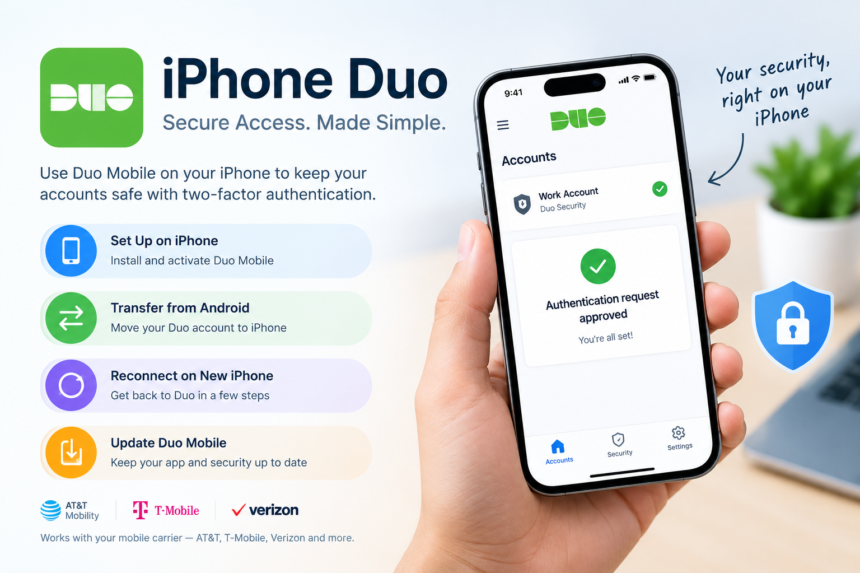
iPhone Duo: How to Use, Transfer, Reconnect, and Update Duo Mobile on iPhone
If you use Duo Mobile for two-factor authentication (2FA), moving to an iPhone or setting up a new iPhone can raise an important question: How do I keep Duo working?
The good news is that Duo Mobile supports iPhone, and you can activate it by scanning a QR code during enrollment. Cisco Duo’s current documentation says Duo Mobile supports iOS 16 and later on iPhone.
Whether you’re moving from Android to iPhone, replacing an old iPhone, or simply updating Duo Mobile, the steps below can help.
What Is Duo Mobile on iPhone?
Duo Mobile is a security app used by organizations to verify your identity when you sign in to protected accounts and services. It can receive Duo Push authentication requests and can also provide passcodes for authentication.
To use Duo Mobile on an iPhone, install the official app from the App Store and activate your account through your organization’s Duo enrollment process. Duo’s instructions recommend installing the version published by Duo Security LLC.
Can Duo Be Used on iPhone?
Yes. Duo Mobile can be used on iPhone.
Duo’s current iPhone guide states that the current version of Duo Mobile supports iOS 16.0 and later.
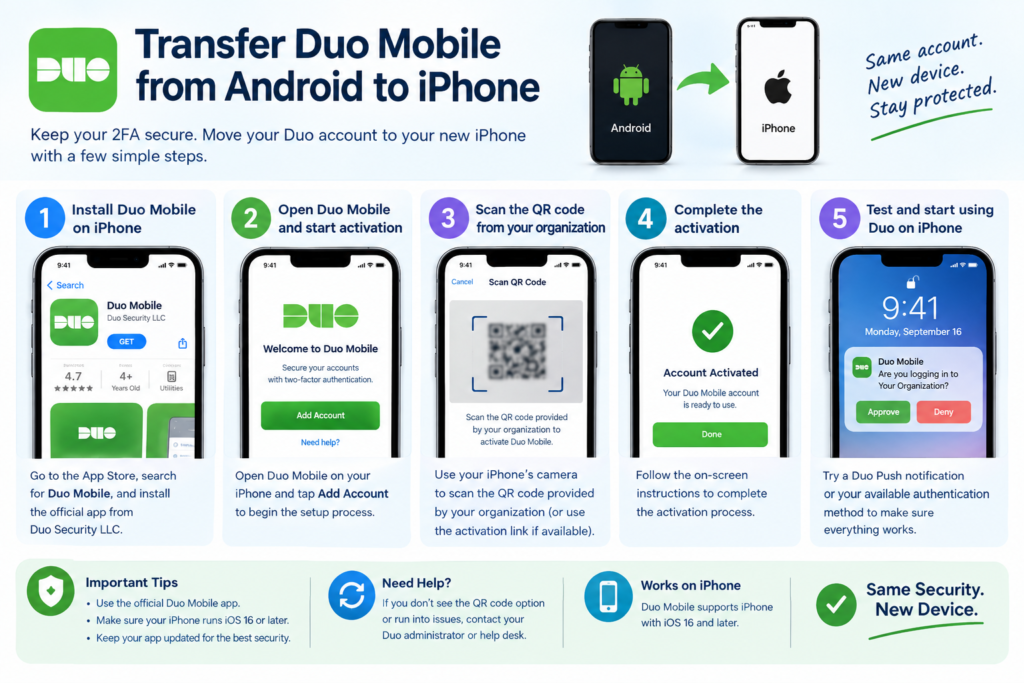
After installing Duo Mobile, you normally activate your account by scanning a QR code supplied during Duo enrollment. Duo also provides an activation-link option when scanning a QR code isn’t possible.
The basic process is:
- Open the App Store on your iPhone.
- Search for Duo Mobile.
- Install the official Duo Mobile app.
- Open Duo Mobile.
- Follow the enrollment instructions.
- Scan the QR code provided by your organization.
- Complete the activation process.
- Test Duo Push or your available authentication method.
How to Transfer Duo Mobile From Android to iPhone
Moving your phone number from Android to iPhone does not necessarily mean that your Duo Mobile account is automatically ready on the new device.
For a new phone, Duo provides a reactivation process through the Duo device-management portal when the new phone uses the same phone number as the old device.
Step 1: Install Duo Mobile on your iPhone
Download Duo Mobile from the App Store and open it.
Step 2: Start the Duo reactivation process
If your organization uses Duo’s self-service device management, locate your existing phone and select the option indicating that you have a new phone.
Duo may ask you to verify ownership of the phone number with a text message or phone call.
Step 3: Scan the activation QR code
After verification, Duo displays an activation QR code.
Open Duo Mobile on your iPhone and select the option to add an account or scan a QR code. Scan the code displayed during enrollment.
Step 4: Finish activation
Complete the activation process and test Duo Push.
If your organization does not provide self-service reactivation, you may need to contact your organization’s Duo administrator or help desk for assistance.
Important: Don’t assume that simply restoring your old phone’s backup will complete Duo activation. The Duo account may need to be reactivated on the new device.
How to Reconnect Duo Mobile on a New iPhone
If you purchased a new iPhone and Duo stopped working, you may need to reactivate the app rather than simply reinstalling it.
Duo’s Universal Prompt enrollment guide provides a specific process for a new phone using the same number:
- Open your organization’s Duo device-management portal.
- Find your existing phone.
- Select I have a new phone.
- Choose Get started if the phone has the same number.
- Verify ownership using the available verification method.
- Install Duo Mobile on the new iPhone.
- Scan the QR code shown by the enrollment portal.
- Complete reactivation.
If the new iPhone has a different phone number, the process can be different. Duo’s documentation says users should add the new phone as a new device rather than using the same-number reactivation process.
How to Update Duo App on iPhone
Keeping Duo Mobile updated is important because organizations can require supported versions of the app and operating system.
To manually update Duo Mobile:
- Open the App Store.
- Tap your account/profile button.
- Open App Updates.
- Find Duo Mobile.
- Tap Update.
Apple says App Store apps are normally updated automatically by default, but users can manually update individual apps when needed.
If Duo Mobile doesn’t appear in the update list, it may already be current.
How to Update Duo Mobile on iPhone When It Won’t Update
If Duo Mobile refuses to update, try these steps:
Check your iOS version
Duo’s current documentation lists iOS 16 as the minimum supported version for the current Duo Mobile iPhone app.
Check your internet connection
Make sure your iPhone is connected to Wi-Fi or cellular data.
Restart the iPhone
A restart can resolve temporary App Store or download problems. Apple also recommends restarting an iPhone when troubleshooting app download or update issues.
Try the App Store again
Open the App Store, go to your account, and check App Updates.
Update iOS if necessary
Duo can enforce operating-system requirements through organizational policies. An outdated iOS version can therefore affect access to Duo-protected applications.
What If Duo Mobile Doesn’t Work After Moving to iPhone?
If you’ve transferred from Android to iPhone and Duo Push isn’t arriving, check the following:
- Confirm Duo Mobile is installed.
- Make sure you’re using the official Duo Mobile app.
- Check that your iPhone is running a supported iOS version.
- Make sure the Duo account was actually activated on the new iPhone.
- Check your internet connection.
- Open Duo Mobile and verify that the account appears.
- Try another available authentication method if your organization provides one.
- Contact your organization’s Duo administrator if you cannot reactivate the account.
Simply having the same phone number on the iPhone does not always mean that Duo has been successfully activated on that device.
iPhone Duo and Mobile Carriers
Changing carriers or moving an existing number to a new iPhone can sometimes happen at the same time as a Duo transfer.
Related mobile-network topics include:
- AT&T Mobility when activating an iPhone or transferring a number.
- T-Mobile when moving an existing line to a new iPhone.
- Verizon when upgrading or activating an iPhone.
These carrier processes are separate from Duo activation. Your cellular service can be working normally while Duo still requires separate device activation.
Frequently Asked Questions
Can Duo be used on iPhone?
Yes. Duo Mobile supports iPhone, with the current Duo documentation listing iOS 16 and later as supported.
How do I transfer Duo Mobile from Android to iPhone?
Install Duo Mobile on the iPhone and reactivate the Duo account using your organization’s enrollment or device-management process. If available, Duo’s same-number reactivation process can verify your phone and provide a QR code for activating the new device.
How do I reconnect Duo Mobile on a new iPhone?
Use the I have a new phone option in the Duo device-management portal when available, verify your phone number, then scan the new activation QR code with Duo Mobile.
How do I update the Duo app on iPhone?
Open the App Store, tap your profile, open App Updates, find Duo Mobile, and tap Update.
Does updating Duo Mobile remove my Duo account?
An ordinary app update is different from reactivating or replacing a Duo device. If you are replacing your phone, follow the Duo reactivation process rather than relying only on an app update.
Final Thoughts
iPhone Duo setup is straightforward once you understand the difference between installing the Duo Mobile app and activating your Duo account.
If you’re moving from Android to iPhone, replacing an old iPhone, or troubleshooting Duo after an upgrade, the key steps are to install the current Duo Mobile app, verify that your iPhone meets the supported requirements, and reactivate the account when necessary.
For organizations using Duo’s device-management features, the new-phone reactivation process can make the transition easier, particularly when you keep the same phone number.